Support and field work
Assign tickets and keep handovers out of public replies.
Open Support inbox, search a subject or reference, and filter by status or assignee. Choose a conversation to work on it.
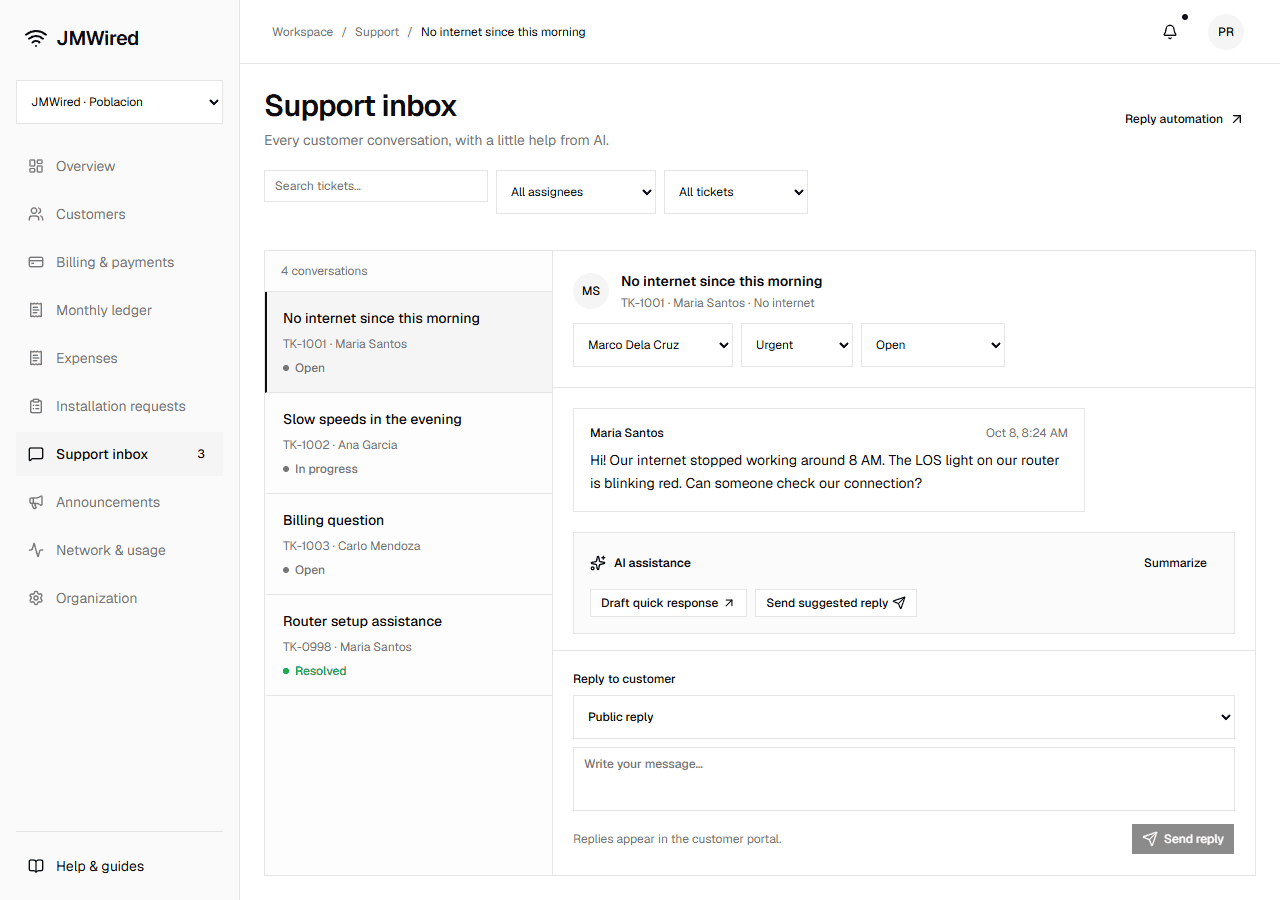
Assignment
Set Ticket assignee, Ticket priority, and Ticket status. Active branch members are available; pending invitations are excluded. Assign technicians line checks and repairs, then use the assignee filter to see their work.
Replies and notes
Choose Public reply for the subscriber, or Internal staff note for the team. Internal notes are excluded from customer conversations and notifications. Select Send reply or Save internal note. A public reply moves an Open ticket to In progress.
Use internal notes for equipment to bring, visit findings, and staff handovers. Before sending a customer update, confirm Message visibility is set to Public reply. The visibility choice applies to the next message, including a suggested response.
AI assistance
Summarize shows a conversation overview. Draft quick response puts a suggestion into the composer for editing. Send suggested reply sends it immediately. Check reply visibility before sending.
Preview suggestions use templates, including an acknowledgement for an active outage. Platform settings can hide AI tools. Real AI services are awaiting connection.
Check the customer's issue, repair status, and any timing in the response before sending. If the tools are missing, ask the platform administrator to check System & AI; ordinary replies still work.
Reply automation
Open Reply automation, enable it, choose Outages or Off-hours, and enter a message. Use Preview reply, then Save automation.
Outage replies apply only to affected subscribers. Off-hours means before 8 AM or after 5 PM, Philippine time. One acknowledgement is added to new requests; existing tickets are unchanged.