Network and subscriber usage
Read branch connection counts and understand reporting status.
Open Network & usage in the organization sidebar.
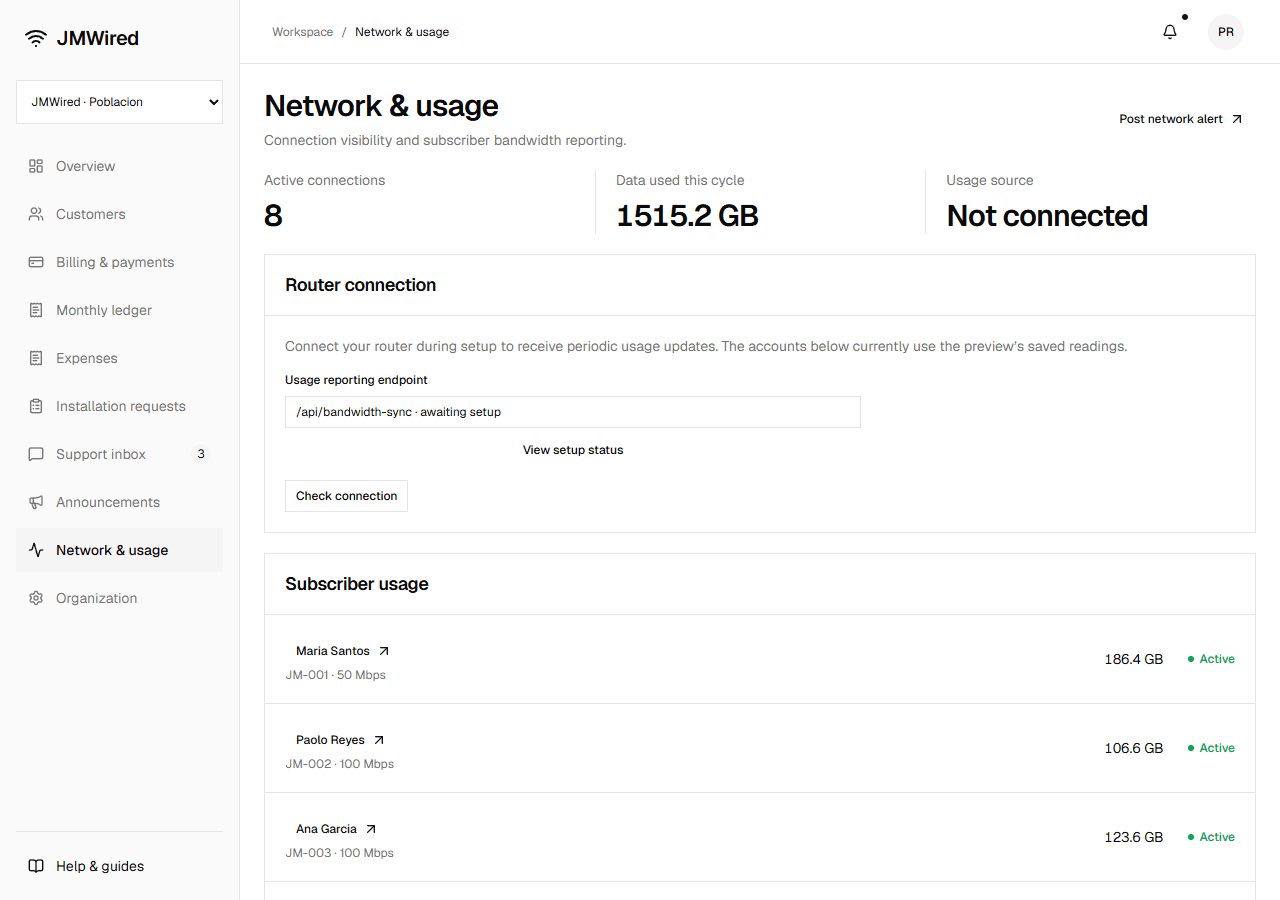
Usage source is Not connected in the current preview; the saved readings are examples.
Read the summary
| Item | What it shows |
|---|---|
| Active connections | Subscribers in this branch whose saved account status is Active |
| Data used this cycle | The sum of saved usage readings for this branch's subscriber records |
| Usage source | Whether the reporting source is connected; currently Not connected |
An Active account is an administrative record. It does not confirm that the subscriber's equipment is online at this moment.
Review a subscriber
The Subscriber usage list shows name, account number, plan speed, usage in GB, and account status. Select the name to open the subscriber record and its history. Ask the customer for details through a support conversation if a reading needs investigation.
The current usage totals are sample readings. There is no live bandwidth polling, router test, or speed test in this preview.
Check reporting setup
Select Check connection in Router connection. Until integration is configured, the page reports that no router is connected. View setup status also explains that a reporting address will be available after setup.
The displayed Usage reporting endpoint is a setup placeholder. Do not use it as a working router address or paste access tokens into support conversations. Your setup team will provide verified configuration when live reporting is connected.
Notify customers about a problem
Select Post network alert to open the update form. Choose Outage or Maintenance and the affected audience. Publication informs customers but does not change router settings or restore a connection. Follow the announcement guide.