Publish service updates
Tell affected subscribers about maintenance and outages.
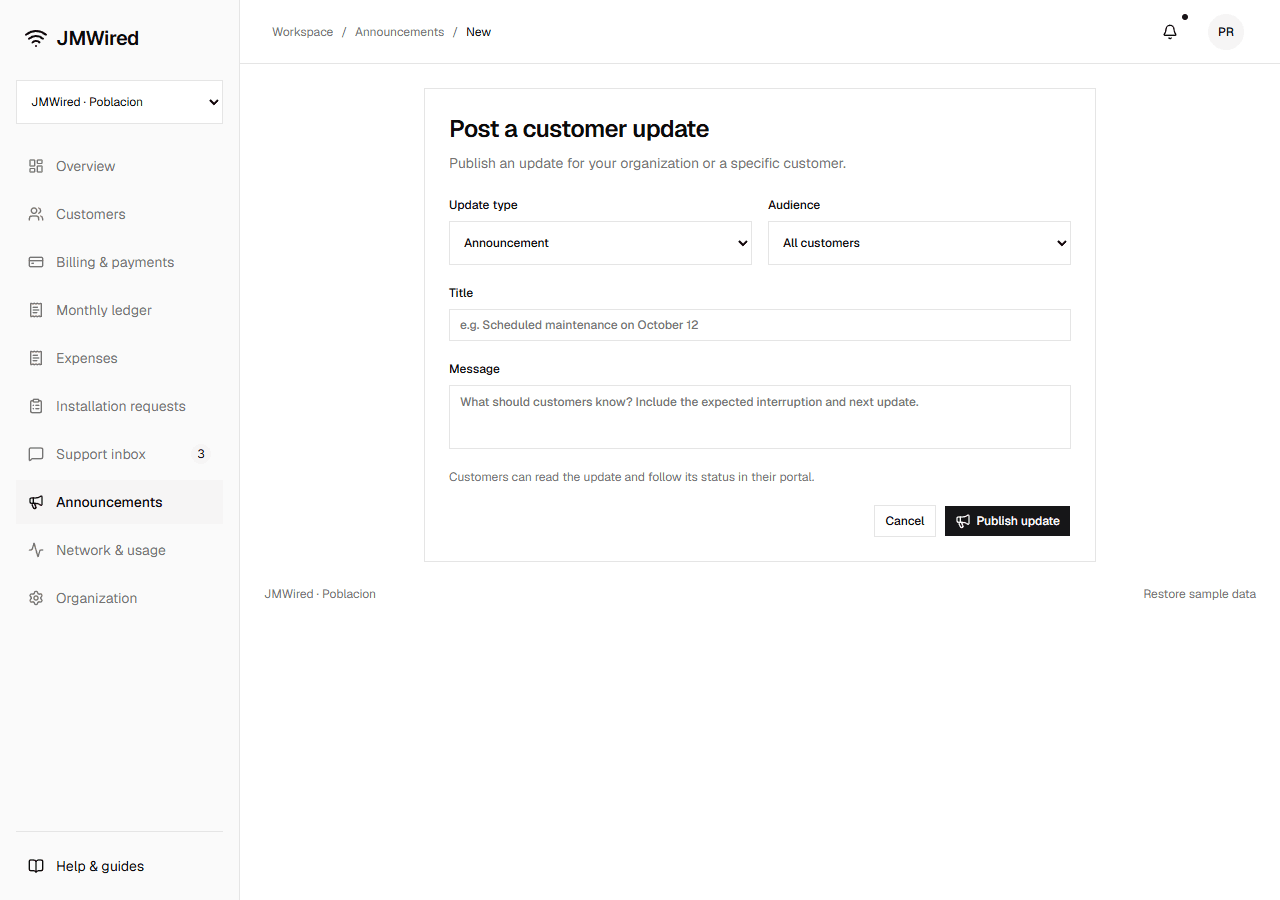
- Open Announcements → Post update.
- Choose Announcement, Maintenance, or Outage under Update type.
- Choose an Audience: All customers, Service area · [area name], or one subscriber.
- Enter a Title and Message. Include the affected area, expected interruption, and when your team will give another update.
- For maintenance, enter Maintenance starts (Asia/Manila).
- Select Publish update.
The update appears immediately for its audience in the portal's Updates page and bell where relevant. Active maintenance and outage notices also appear on the overview. A maintenance start time is displayed information, not a delayed publication timer.
Service-area selection uses the subscribers currently assigned to that area. One subscriber selection sends the notice only to that account. Check the audience list after publishing, especially when several service areas share a branch.
After repair work, select Mark resolved on the maintenance or outage notice. The notice remains in history with Resolved status. Publish a follow-up if customers need details about the repair.
Device push is awaiting connection; current updates appear inside the portal. A notice does not perform a network repair or change an account's administrative status.