Report a connection problem
Create a request and follow its conversation.
- Open Support → New request.
- Choose No internet, Red LOS light, Slow connection, Billing, Relocation, or Other.
- Enter a subject and describe when it started and what you have checked.
- Select Submit request.
Keep follow-ups in the same conversation so the team can see the history.
Help the team understand the problem
Include when the issue started, whether one or all devices are affected, and any equipment lights or error message you can see. For a billing question, include the payment reference and the result you are asking about. Do not include passwords or payment-app access codes.
Example: “No internet since 8 AM. Both phones and the laptop are affected. The LOS light is red. Account JM-001.”
Track a request
Open Support or Overview → View ticket history, then select a request. Its reference, category, status, and conversation stay together. Write in Reply to support and select Send reply to add a follow-up.
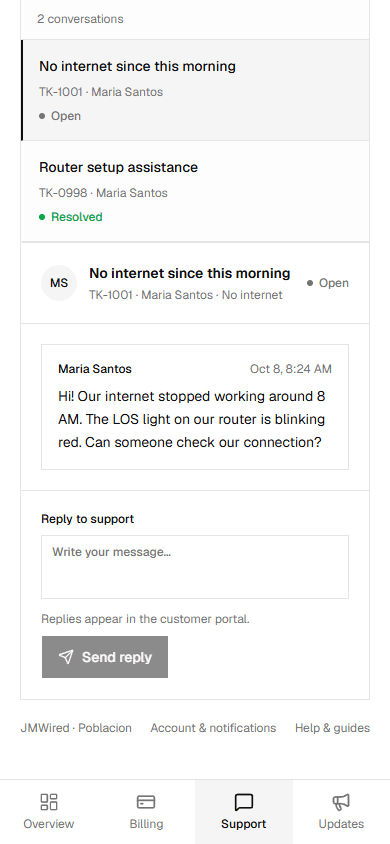
On a phone, Support remains available in the bottom navigation.
| Status | What it means |
|---|---|
| Open | The request is waiting for review |
| In progress | The team is handling it |
| Resolved | The team has marked its work complete |
Resolved conversations stay in history and can receive follow-ups. Your provider manages the status; sending another message does not guarantee that it changes automatically.
An automatic acknowledgement confirms receipt; it does not mean a repair is complete. If a router shows a red LOS light, mention it in the request. Do not bend or unplug the fiber connector. During portal maintenance, contact your local office for urgent help.
You see public replies from the team. Staff handover notes are kept out of your conversation. Check Updates for notices that may explain a problem affecting your area.